Module: Expenses
The Expenses module in Digichama allows you to monitor and manage financial expenditures within your group. Whether it's for operational costs, event expenses, or any other group-related spending, this module provides a centralized platform to track and categorize all expenses efficiently.
Required Modules
It's important to note that the Expenses module requires the following modules to function effectively.
Expenses is a premium module. It is enabled automatically when your chama upgrades to a paid plan, and disabled if the chama returns to the free plan.
Importance of Expenses:
- Accountability: Every expense records who recorded it, which account it was paid from and, optionally, a photo of the receipt.
- Accurate Balances: Recording an expense withdraws the amount from the chosen chama account, so your Accounts balances always match what has actually been spent.
- Categorized Spending: Expense types (for example rent, transport or refreshments) make it easy to see where the group's money goes.
Accessing the Expenses Module
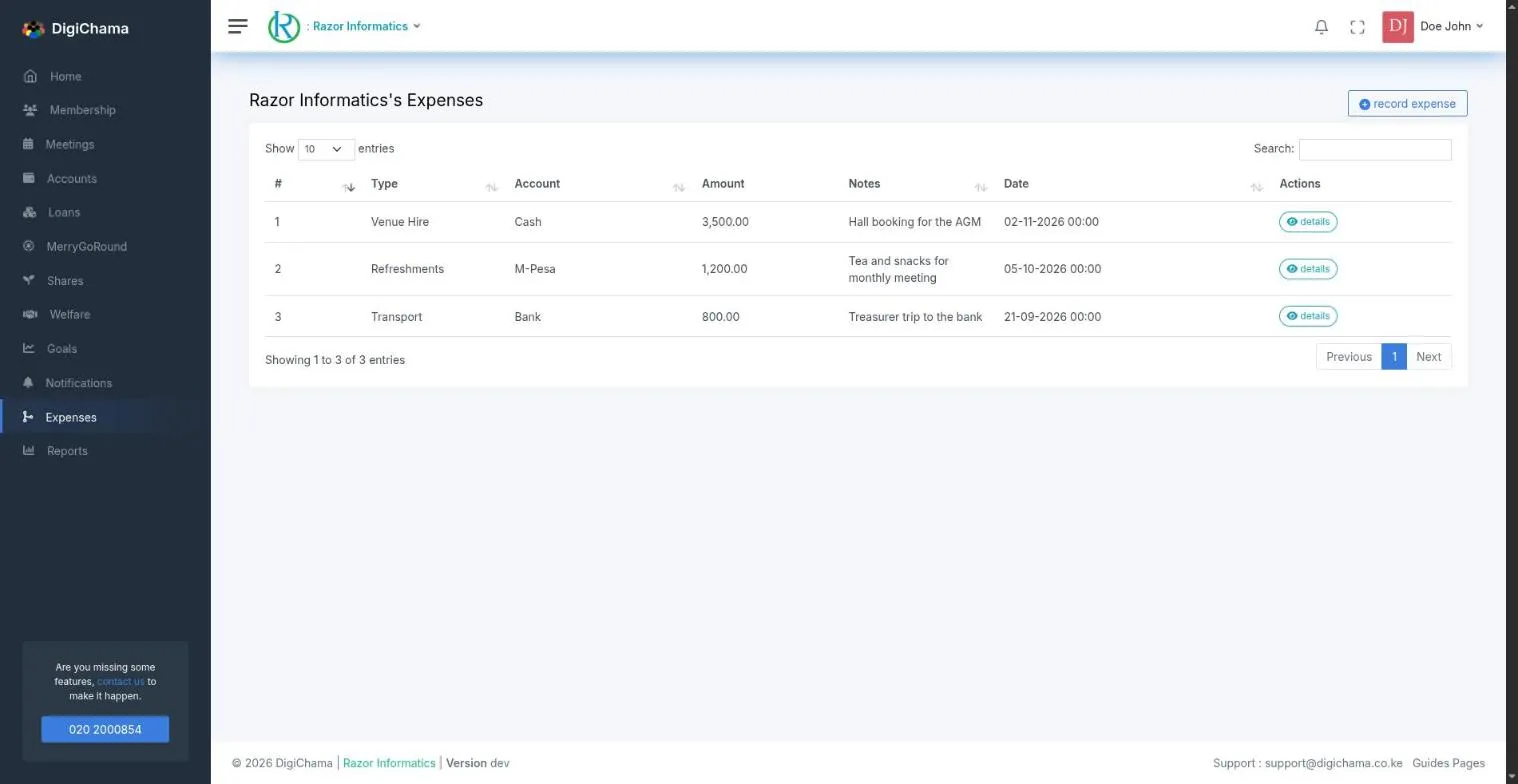
Open the Digichama portal and log in to your account. Ensure you're on the dashboard of the chama you want to manage. Within the right-side menu, click on the option labeled "Expenses". This will take you to a list of all expenses recorded by your chama, showing each expense's type, account, amount, notes and date. All active members can view this list.
Recording an Expense
Only the Chairperson and Treasurer can record expenses.
- Click the record expense button at the top of the expenses page.
- Fill in the form:
- Account: the chama account the money is paid from.
- Expense Type: the category of the expense. If the type you need isn't listed, click + add new type, enter a name and optional notes, then click add type.
- Amount: the amount spent.
- Transaction Charges: any fees charged on the payment, such as M-Pesa or bank charges. Defaults to 0.
- Expense Date: the date the money was spent. Defaults to today.
- Notes: a short description of the expense.
- Receipt (image): optionally, a photo of the receipt.
- Click record expense.
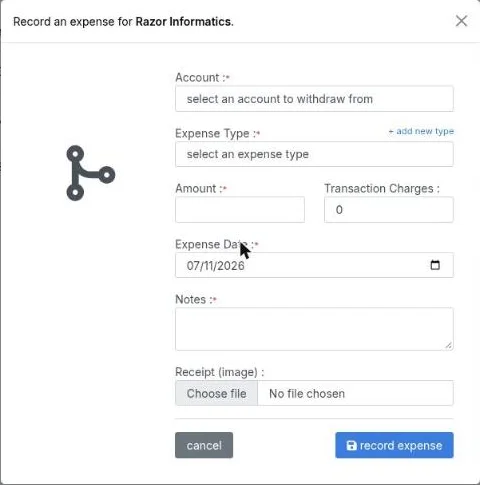
The amount plus any transaction charges is withdrawn from the selected account. If the account doesn't have enough balance, Digichama will show the available balance and the expense won't be recorded.
Expense Details
Clicking the "details" button next to an expense opens its details page, showing the expense's type, account, amount, notes, date, receipt image and who recorded it.
From here, the Chairperson or Treasurer can:
- Update the expense type and notes, or upload a new receipt image. The amount and account can't be changed. To correct them, reverse the expense and record it again.
- Reverse the expense. This deposits the amount back into the account it was paid from and removes the expense from the list.