Module: Reports
The Reports module lets you run ready-made financial and membership reports for your chama (group), preview the results on screen, and download them as PDF, Excel, ODS or CSV files. Reports are a premium feature.
Required Modules
It's important to note that the Reports module requires the following module to function effectively.
Individual reports draw on the data of other modules. For example, the loan reports only have data when the Loans module is in use.
Importance of Reports:
- Transparency: Leaders can share clear, printable records of contributions, loans, penalties and expenses with members.
- Better Decisions: Summaries such as the Chama Financial Summary and Loan Arrears show the group's position at a glance.
- Record Keeping: Exported files can be kept for audits, annual general meetings or filing.
- Personal Statements: Every member can download their own share, loan and penalty statements at any time.
Accessing Reports
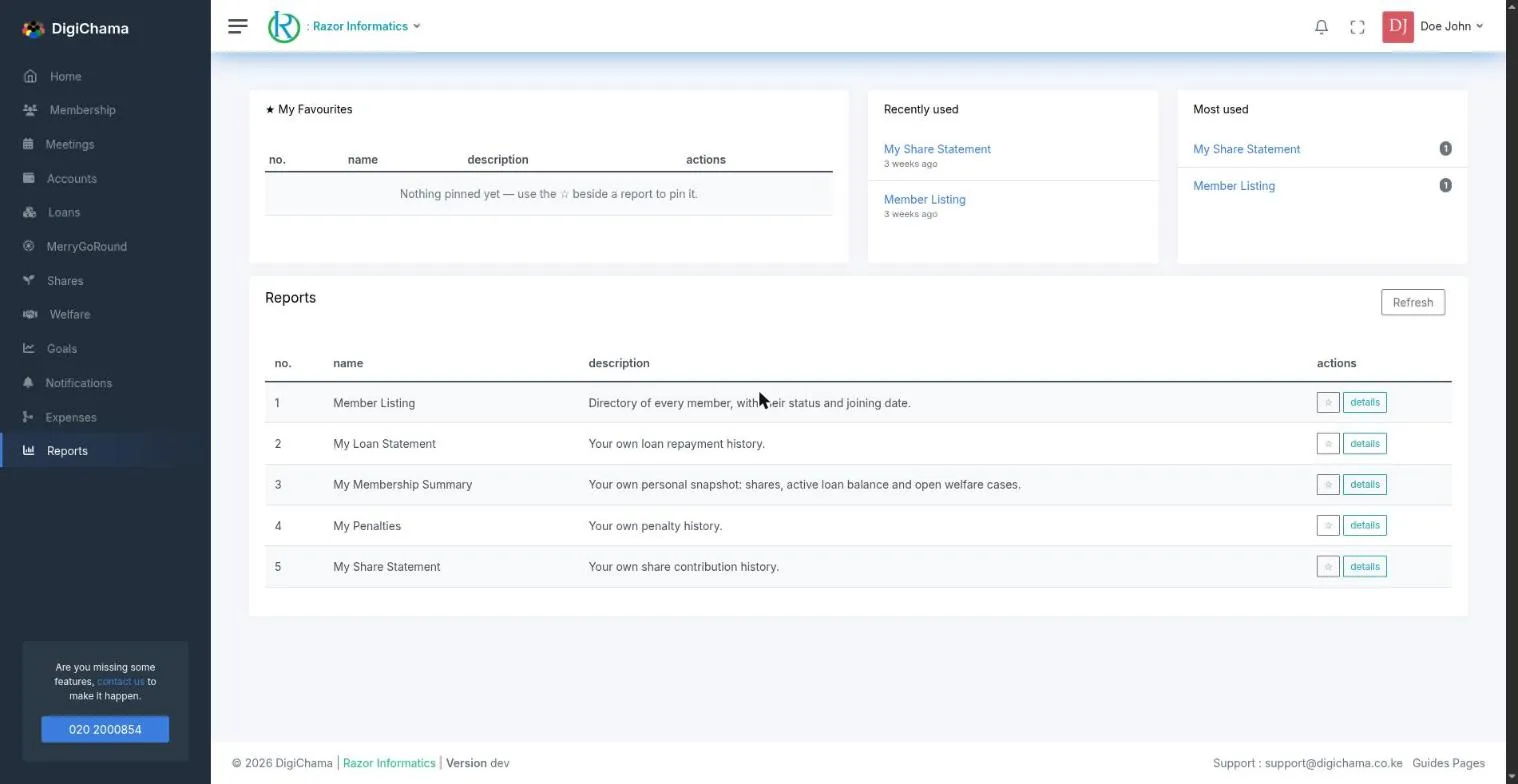
Open the Digichama portal and log in to your account. Ensure you're on the dashboard of the chama you want to manage. Within the right-side menu, click on the option labeled "Reports". This takes you to a list of the reports available to you, with each report's name and a short description.
Above the list are three shortcut panels: My Favourites, Recently used and Most used. Click the star (☆) next to a report to pin it to My Favourites, and click it again to remove it.
Running a Report
- Click "details" next to the report you want.
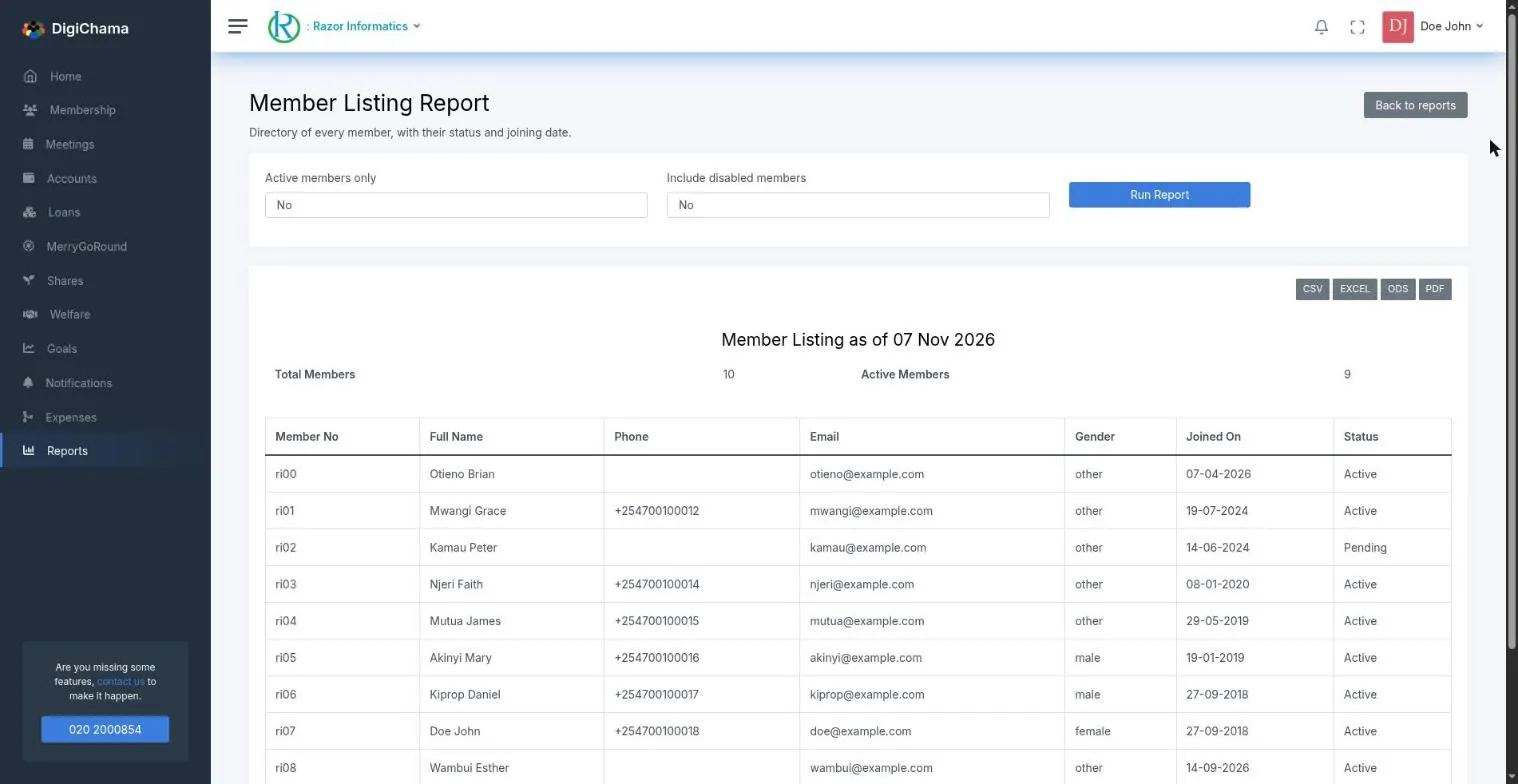
- Fill in the report's filters, if it has any. Reports covering a period have a date range that defaults to the start of the current month up to today. Quick buttons such as Today, This Week, Last Month, This Quarter and This Year fill in the dates for you.
- Click Run Report.

The results appear below the filters. The on-screen preview shows up to the first 15 rows. Export the report to get every row.
Exporting a Report
After running a report, use the export buttons above the results to download it in one of these formats:
- PDF: a printable document with your chama's name, logo and contact details as a letterhead, and the name of the member who generated it.
- Excel (.xlsx)
- ODS (.ods), for LibreOffice and other open-source spreadsheet programs
- CSV (.csv), plain comma-separated values that open in any spreadsheet program. CSV is the best choice for very large reports.
Who Can See Which Reports
Every report only ever shows data for the chama you are currently viewing.
- Personal reports (names starting with "My") are available to every active member and always report on the member running them. A member cannot use them to view another member's records.
- Group reports are available only to the chama's leadership: the Chairperson, Treasurer and Secretary.
Available Reports
Personal reports (all members)
| Report | What it shows |
|---|---|
| My Membership Summary | Your own snapshot: shares, active loan balance and open welfare cases. |
| My Share Statement | Your own share contribution history. |
| My Loan Statement | Your own loan repayment history. |
| My Soft Loan Statement | Your own soft loan history. |
| My Penalties | Your own penalty history. |
| Member Listing | Directory of every member, with their status and joining date. Can be limited to active members or include disabled members. |
Group reports (leadership only)
| Report | What it shows | Filters |
|---|---|---|
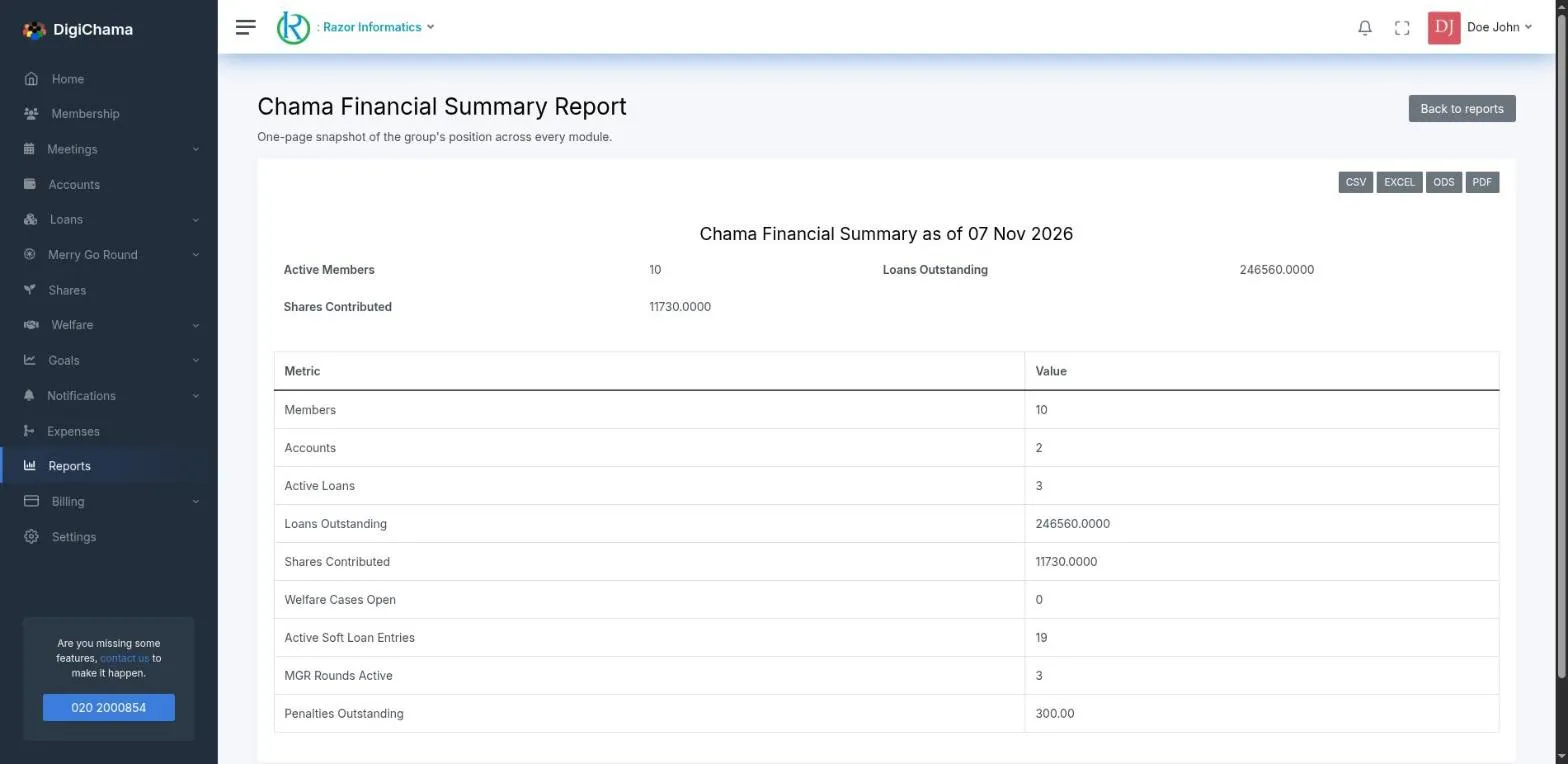
| Chama Financial Summary | One-page snapshot of the group's position across every module. | None |
| Account Balances | Current balance of every chama account. | None |
| Transactions Ledger | Every account transaction in a period. | Period, account type (Cash, Bank, Sacco, M-Pesa, System) |
| Disabled Members | Members removed or disabled from the group, and who disabled them. | None |
| Meeting Attendance | Attendance register for meetings held in a period. | Period |
| Member Attendance Register | Per-member attendance tally across meetings held in a period. | Period |
| Share Contributions | Every share contribution recorded in a period, across all members. | Period |
| Loan Portfolio | Every loan, with principal, balance and status. | Status (Active, Archived) |
| Loan Repayments | Repayments and disbursements posted against loans in a period. | Period |
| Loan Arrears | Active loans past their due date with a balance still outstanding. PDF exports are marked "Confidential". | None |
| Soft Loan Ledger | Soft loan disbursements, repayments and interest postings in a period. | Period, entry type |
| Welfare Cases | Every welfare case opened, with amount and status. | Status |
| Welfare by Member | Welfare cases grouped by the member they were raised for. | None |
| Goals Overview | Group investment goals: target versus the periodic contribution amount. | Status |
| MGR Rounds | Individual merry-go-round rounds: recipient, target amount and what has been collected. | Status |
| MGR Cycles | Merry-go-round cycles and how many of their rounds have been recorded. | Status |
| Penalties | Penalties issued and settled in a period. | Period, type (Issued, Settled) |
| Expenses | Every expense recorded in a period, with the withdrawal amount posted for it. | Period |
| Notification Delivery | SMS and notification delivery log for a period. | Period, delivery status |
| Invoices | Digichama subscription invoices raised in a period, with payment status. | Period, status (Paid, Pending, Overdue) |
Statements in the Mobile App
When the Reports module is enabled, members can also download their share, loan, soft loan and penalty statements from the Digichama mobile app.